Send to Kindle from iPhone
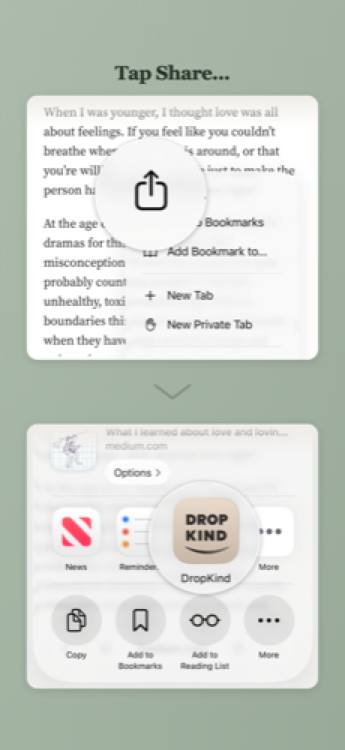
You're on your phone. Maybe you're reading a long article in Safari that you'd rather finish on your Kindle. Maybe someone texted you a PDF and you want to read it properly, not pinch-zooming on a phone screen. Maybe you have an EPUB in your Files app that belongs on an e-reader, not a phone. The DropKind iOS app handles all of these. It adds a share option to every app on your iPhone — tap Share, pick DropKind, and the content goes to your Kindle wirelessly.
Install DropKind: Send to Kindle
Get the DropKind app from the App Store. It's free.
Connect your Kindle
A short guided setup: add DropKind as an approved sender in your Amazon account and enter your Kindle email. Takes about a minute.
Share from any app
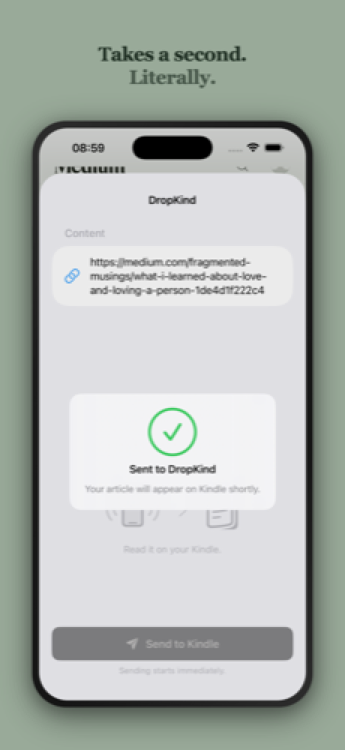
Open the share sheet in Safari, Files, Mail, or any app that lets you share. Pick DropKind, and the content is sent to your Kindle.
Read on your Kindle
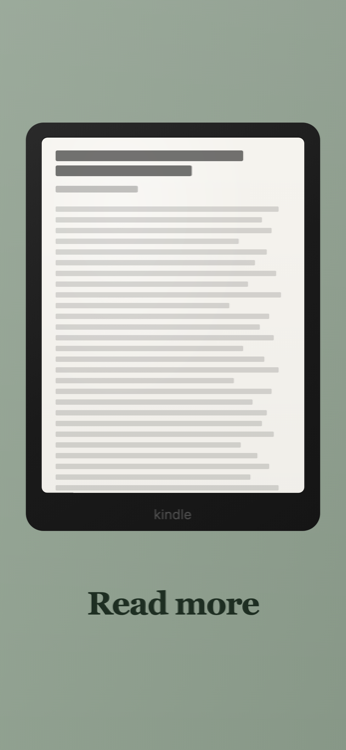
The document appears in your Kindle library in under a minute. Formatted for e-ink, ready to read.
Sharing articles from Safari
This is the most common use. You're reading an article in Safari — a blog post, a news feature, a long thread — and you want to read it on your Kindle instead. Tap the share button, select DropKind, and the app captures the full page content directly from your browser. It doesn't just send the link for our servers to re-fetch — it grabs the HTML you're already looking at. That means it works even on pages that require a login or block automated access. The article arrives on your Kindle cleaned up: ads, navigation, popups, and cookie banners stripped. Just the writing.
Sharing files
The app also handles files. Open a PDF in your Files app, an EPUB from an email, or a Word document someone shared in a chat — tap Share and pick DropKind. Supported formats include PDF, EPUB, DOCX, plain text, RTF, and HTML. The file is uploaded and delivered to your Kindle. For PDFs and Word documents, DropKind converts them into a format that reflows on your Kindle — adjustable font size, proper line breaks, no more pinch-zooming.
Why the share sheet matters
Without the share sheet, sending something from your phone to your Kindle means copying the URL, switching to a browser, opening DropKind, and pasting. Or emailing the file to your Kindle address. Both work, but both interrupt whatever you were doing. The share sheet keeps you in the app you're already using. See something worth reading? Two taps and it's queued for your Kindle. You go back to what you were doing. The article or file arrives on your Kindle by the time you pick it up.
Frequently Asked Questions
Does it work with pages behind a paywall or login?
Yes — that's one of the biggest advantages of the iOS app over pasting a URL. When you share from Safari, DropKind captures the page as you see it in your browser. If you're logged in and can read the full article, that's what gets sent to your Kindle.
What file types can I share?
PDF, EPUB, DOCX, plain text, RTF, HTML, and common image formats. If you can share it from another app on your iPhone, DropKind can likely handle it. See our documents guide for a full breakdown by format.
Can I share from apps other than Safari?
Yes. Any app with a share button can send content to DropKind. This includes Mail (share an attachment), Files (share a document), Notes, Messages (share a link or file someone sent you), and most third-party apps.
Do I need to be logged into DropKind to share?
Yes. The app needs to know which Kindle to send to. Once you've signed in and connected your Kindle, sharing works every time without any extra steps.
Is the app free?
The app is free to download and use. DropKind has a free tier that lets you send content to your Kindle — no credit card required.
Related Guides
How to Send Articles to Kindle
Send any web article to your Kindle for distraction-free reading. Works with most sites — news, blogs, Medium, and more. Free and instant.
How to Send Documents to Kindle
Send any document to your Kindle wirelessly — PDF, EPUB, DOCX, TXT, and more. Upload a file or paste a link and DropKind delivers it in seconds.
Send to Kindle from Chrome
Send any web page to your Kindle with one click using the DropKind Chrome extension. Works on any site, even pages behind logins. Free.
Ready to try it?
Send your first document to Kindle in under a minute.
Free to use. No credit card required.