Send to Kindle from Chrome
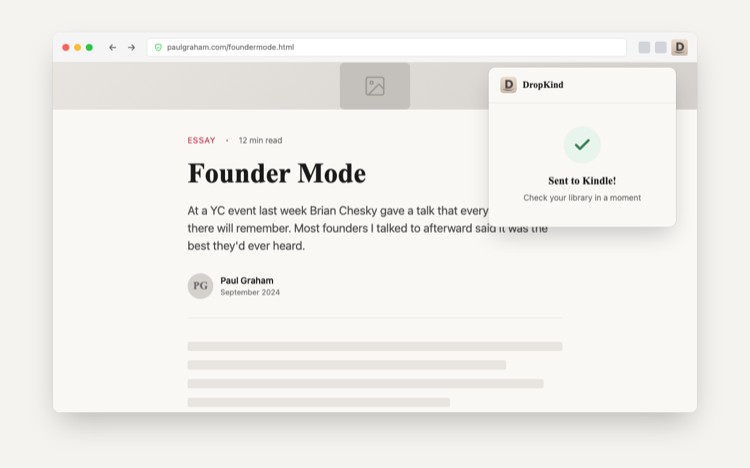
You're reading something long in Chrome — a blog post, a Paul Graham essay, a research paper, a Wikipedia deep dive — and you'd rather read it on your Kindle. The DropKind Chrome extension adds a button to your browser toolbar. Click it, and the page you're looking at goes to your Kindle. The extension captures the page as you see it, so it works even on sites behind logins or paywalls. One click, no copying URLs, no switching tabs.
Install the extension
Add DropKind to Chrome from the Chrome Web Store. It's free.
Connect your Kindle
Sign in and connect your Kindle email. A short guided setup — takes about a minute.
Click the extension icon
Navigate to any article or page you want to read on your Kindle. Click the DropKind icon in your browser toolbar. That's it.
Read on your Kindle
The article appears in your Kindle library in under a minute. Cleaned up, formatted for e-ink, ready to read.
How it works
When you click the extension icon, DropKind captures the full HTML of the page you're looking at — directly from your browser. It doesn't re-fetch the URL from a server. This means it works on pages that require a login, pages behind paywalls you've paid for, and pages that block automated access. The content is cleaned up — ads, navigation, popups, cookie banners, and sidebars stripped — and delivered to your Kindle as a readable document.
Works on any site
Blogs, news sites, research papers, documentation, forums, newsletters opened in your browser — if you can read it in Chrome, you can send it to your Kindle. The extension handles long-form articles especially well, but it works on any page with text content.
Why a browser extension?
You could paste a URL into the DropKind web app, but that means switching tabs, pasting, and waiting. The extension keeps you on the page you're reading. One click and it's sent. You don't leave the article. And because it captures the page from your browser, it sees everything you see — including content behind logins that a URL-based approach would miss.
Frequently Asked Questions
Does it work with pages behind a paywall or login?
Yes. The extension captures the page as your browser renders it. If you're logged in and can see the full article, that's exactly what gets sent to your Kindle. This is a major advantage over pasting a URL.
Does it work on other Chromium browsers?
Yes. The extension works on Chrome, Brave, Arc, Edge, Opera, and any other Chromium-based browser that supports Chrome Web Store extensions.
What about Firefox or Safari?
The extension is Chrome-only for now. On Safari, you can use the DropKind iOS app with the share sheet. On any browser, you can paste a URL into the DropKind web app.
Can I send PDFs open in Chrome?
The extension is designed for web pages. For PDFs, you can drag and drop them into the DropKind web app or share them from the iOS app.
Is it free?
The extension is free to install and use. DropKind has a free tier that lets you send content to your Kindle — no credit card required.
Related Guides
How to Send Articles to Kindle
Send any web article to your Kindle for distraction-free reading. Works with most sites — news, blogs, Medium, and more. Free and instant.
How to Send Web Pages to Kindle
Send any web page to your Kindle. Paste the URL and DropKind extracts the content, removes ads, and delivers a clean document wirelessly.
Send to Kindle from iPhone
Send articles, PDFs, and files to your Kindle from your iPhone. Use the share sheet in Safari or share documents from any app. Free.
Ready to try it?
Send your first document to Kindle in under a minute.
Free to use. No credit card required.